
Isha, 22
📍 Lucknow
How old are you?
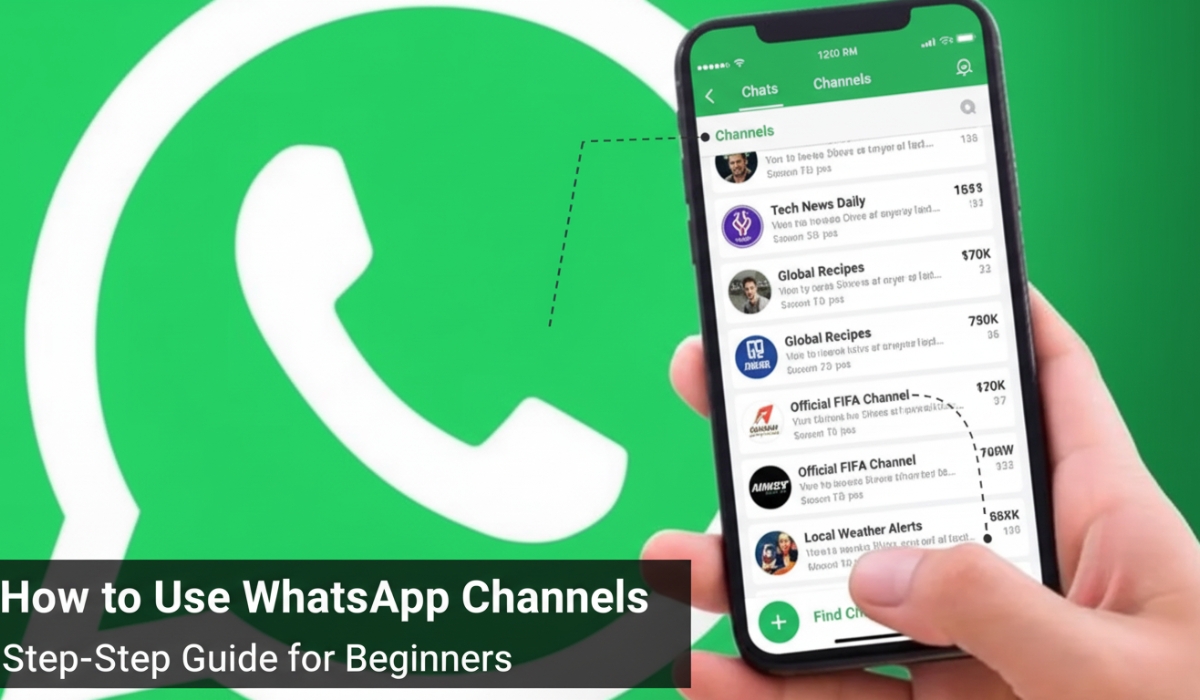
WhatsApp, known for its secure messaging and global reach, has rolled out a powerful feature called WhatsApp Channels—a one-way broadcasting tool designed to help individuals and organizations share updates with a large audience.
Whether you’re a content creator, a business, or just curious about staying informed, WhatsApp Channels opens new doors for simplified communication.
In this beginner’s guide, we’ll cover what WhatsApp Channels are, how to use them, and why they matter.
📌 What Are WhatsApp Channels?
WhatsApp Channels are a private broadcast feature that lets admins send messages, images, videos, stickers, and polls to a large number of followers. Unlike group chats, followers cannot reply in the channel, ensuring that the communication stays one-way and clutter-free.
Think of it like a Telegram Channel or Instagram Broadcast Channel, but within the familiar WhatsApp interface.
🔍 Key Features of WhatsApp Channels
- One-way communication: Only admins can post.
- Followers stay anonymous: Admins can’t see who follows.
- Private and secure: Follower data is not exposed.
- No algorithm interference: Posts appear in chronological order.
- Reactions: Followers can react with emojis, but not comment.
- Searchable directory: Users can browse and follow public channels.
✅ How to Create a WhatsApp Channel
Note: Channel creation is gradually being rolled out worldwide. Ensure your WhatsApp is updated to the latest version.
📱 On Mobile (Android/iOS):
- Open WhatsApp and go to the Updates tab.
- Tap the “+” icon next to Channels or click “Create Channel.”
- Follow the setup steps:
- Channel Name (required)
- Channel Description (optional)
- Profile Picture (optional)
- Tap Create Channel.
- Done! You can now start posting updates.
📲 How to Follow WhatsApp Channels
- Go to the Updates tab in WhatsApp.
- Scroll to the Channels section.
- Use the search icon 🔍 to explore channels by name or topic.
- Tap a channel and hit Follow.
You’ll now see updates from that channel under your Updates tab.
✍️ How to Post in Your Channel
- Open your Channel from the Updates tab.
- Tap the pencil icon ✏️ to create a post.
- You can send:
- Text messages
- Images and videos
- Stickers and emojis
- Polls (if supported)
- Tap Send to broadcast your message.
🔐 Privacy Controls for Channels
- Your phone number is hidden from followers.
- Followers cannot reply or contact you directly via the channel.
- Posts are stored on WhatsApp servers for up to 30 days, after which they auto-delete.
💡 Tips for Using WhatsApp Channels Effectively
- Keep it concise: Use clear and brief updates.
- Use media smartly: Visuals increase engagement.
- Stay consistent: Regular posting keeps your audience engaged.
- Enable notifications: Ask followers to turn them on so they don’t miss updates.
- Promote your channel: Share your channel link on other platforms or with your WhatsApp contacts.
📌 Use Cases for WhatsApp Channels
- Businesses: Share promotions, announcements, or product launches.
- Influencers: Connect with followers outside social media algorithms.
- Educational Institutions: Send updates to students and parents.
- Government and NGOs: Broadcast alerts or public information.
- Communities: Share local news, events, or campaigns.
🧠 Final Thoughts
WhatsApp Channels are a game-changer for one-way communication. Whether you’re a brand, an organization, or just want to keep people informed, this feature gives you a direct line to your audience—without the noise of group chats or the unpredictability of social media platforms.